Arms of God System Requirements — PC Specs, Best Settings & Performance Optimization [2026]
Arms of God System Requirements
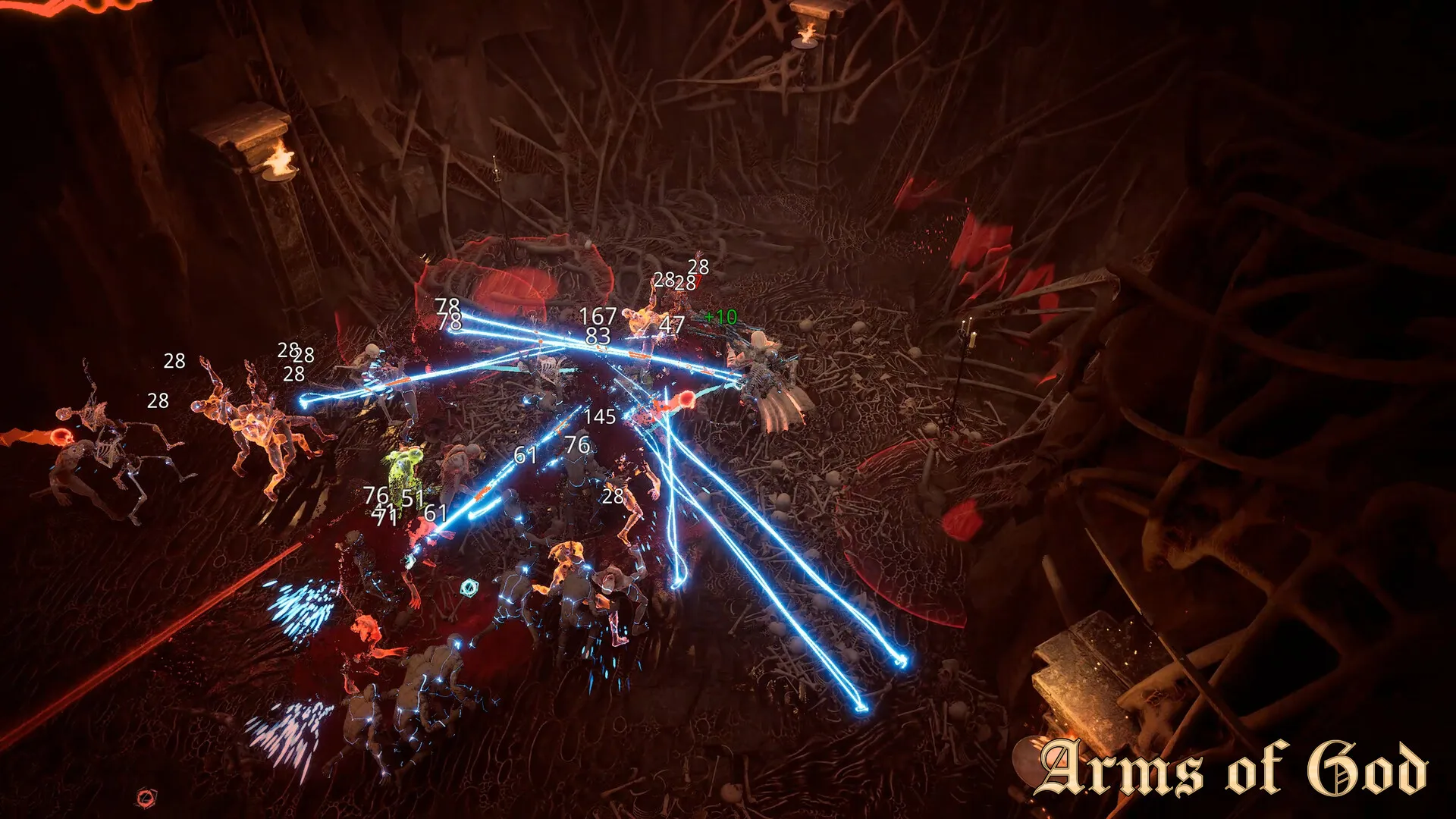
Arms of God is built on Unreal Engine 5 and scales surprisingly well across hardware. The game targets 60 FPS on recommended specs, but competitive players running high-difficulty content should aim for 120+ FPS — the extra frames make dodge timing noticeably more consistent.
Official System Requirements
Minimum (1080p / 30 FPS / Low Settings)
| Component | Requirement |
|-----------|------------|
| OS | Windows 10 64-bit (version 21H2 or newer) |
| CPU | Intel Core i5-8400 or AMD Ryzen 3 3300X |
| GPU | NVIDIA GTX 1060 6GB or AMD RX 580 8GB |
| RAM | 8 GB |
| Storage | 45 GB SSD (HDD not supported — loading times exceed 2 minutes) |
| DirectX | Version 12 |
Recommended (1080p / 60 FPS / High Settings)
| Component | Requirement |
|-----------|------------|
| OS | Windows 11 64-bit |
| CPU | Intel Core i7-10700K or AMD Ryzen 5 5600X |
| GPU | NVIDIA RTX 3060 Ti 8GB or AMD RX 6700 XT 12GB |
| RAM | 16 GB |
| Storage | 45 GB NVMe SSD |
| DirectX | Version 12 |
Competitive / High Refresh (1440p / 120+ FPS)
| Component | Requirement |
|-----------|------------|
| CPU | Intel Core i7-13700K or AMD Ryzen 7 7800X3D |
| GPU | NVIDIA RTX 4070 or AMD RX 7800 XT |
| RAM | 32 GB DDR5 |
| Storage | 45 GB NVMe SSD (PCIe 4.0) |
Note on CPU: Arms of God is CPU-bound in high-density combat rooms (Act 3 Armory, Act 4 Cathedral Entrance). The game runs physics calculations for every projectile, enemy ragdoll, and environmental hazard simultaneously. A strong CPU matters more than an overpowered GPU for this game specifically.
Best Graphics Settings for Performance
These are the settings used by top ladder players. Priority is consistent frame timing over visual quality.
Settings That Significantly Impact FPS
| Setting | Recommendation | FPS Impact | Why |
|---------|---------------|------------|-----|
| Shadow Quality | Medium | +12-18 FPS | Shadows are CPU-rendered in UE5. High shadows tank FPS in Act 3 (dynamic lightning). |
| Effects Quality | Low | +8-12 FPS | Particle effects during boss fights (Archon lightning, Varek orbs) are the biggest FPS droppers. |
| Post Processing | Low | +5-8 FPS | Motion blur and depth of field add input latency. Turn them off. |
| View Distance | High | -3-5 FPS | Keep this high. You need to see Stormcallers and environmental hazards at range. |
| Texture Quality | High | -2-3 FPS | Minimal performance cost if you have 8GB+ VRAM. Keep high for visual clarity. |
| Anti-Aliasing | TAA Low | -2-4 FPS | TAA High blurs movement. TAA Low is sharper and faster. |
| V-Sync | Off | Variable | Adds 1-2 frames of input latency. Use G-Sync/FreeSync instead. |
| FPS Cap | Uncapped or 3 below monitor max | — | Prevents V-Sync engagement if using VRR. |
Settings That Do Not Matter (Set to Preference)
- Foliage Quality: The game has minimal foliage. Low or Ultra makes almost no difference.
- Ambient Occlusion: <2 FPS difference. Set to taste.
- Screen Space Reflections: Only visible in water zones (Act 2). Off saves 3-5 FPS in The Docks.
Steam Deck Optimization
The Steam Deck can run Arms of God at a stable 40-45 FPS with these settings:
| Setting | Value |
|---------|-------|
| Resolution | 1280x800 (native) |
| FPS Cap | 40 FPS / 40 Hz (SteamOS frame limiter) |
| Shadow Quality | Low |
| Effects Quality | Low |
| Post Processing | Low |
| Texture Quality | Medium |
| View Distance | Medium |
| FSR 2.0 | Balanced (in-game upscaler) |
| TDP Limit | 10W (preserves battery, maintains 40 FPS) |
| GPU Clock | 1100 MHz (fixed — prevents clock fluctuation stutter) |
Steam Deck specific: Disable the Steam Deck's built-in frame limiter and use the in-game FPS cap instead. The SteamOS limiter adds 1 frame of latency that makes dodge timing inconsistent at 40 FPS. The in-game cap does not add latency.
Common Performance Issues & Fixes
Stuttering in Act 3 (The Ashen Spire)
Act 3's dynamic lightning system causes shader compilation stutter on first run. Fix: In Steam, add `-NOTEXTURESTREAMING` to launch options. This preloads all shaders on game launch (adds ~15 seconds to initial load time but eliminates stutter).
FPS Drops During Boss Fights
Boss arenas (especially Archon of Storms and Divine Engine Omega) have heavy particle effects. Fix: Set Effects Quality to Low before boss fights. You can change settings mid-run without restarting.
Low FPS on Laptops with Dual GPUs
The game sometimes launches on the integrated GPU instead of the dedicated GPU. Fix: In Windows Graphics Settings, add `ArmsOfGod.exe` and set it to High Performance. Verify in-game via the Settings > Display > GPU field.
Loading Times Over 2 Minutes
HDD is not supported. The game streams assets continuously during zone transitions. Fix: Move the game to an SSD. NVMe is strongly preferred — the difference between SATA SSD and NVMe is roughly 8-12 seconds per loading screen.
Crash on Launch (AMD GPUs)
Some RX 5000 series cards crash on launch with driver version 24.3.1. Fix: Update to driver 24.5.1 or newer, or roll back to 23.12.1.
Config File Tweaks (Advanced)
Located at `%LOCALAPPDATA%\ArmsOfGod\Saved\Config\WindowsNoEditor\Engine.ini`
Add these lines to the bottom of the file:
```
[SystemSettings]
r.Streaming.PoolSize=0
r.Streaming.LimitPoolSizeToVRAM=1
r.MaxAnisotropy=8
r.Tonemapper.Quality=0
```
- `PoolSize=0`: Removes texture streaming pool limit (prevents texture pop-in)
- `LimitPoolSizeToVRAM=1`: Caps streaming pool to your actual VRAM (prevents system RAM spillover that causes stutter)
- `MaxAnisotropy=8`: Forces 8x anisotropic filtering (minimal performance cost, big visual upgrade)
- `Tonemapper.Quality=0`: Disables film grain and lens effects (purely visual, saves 2-3 FPS)